Guides
Roblox Asset Manager (2026): How to Use the New Asset Manager
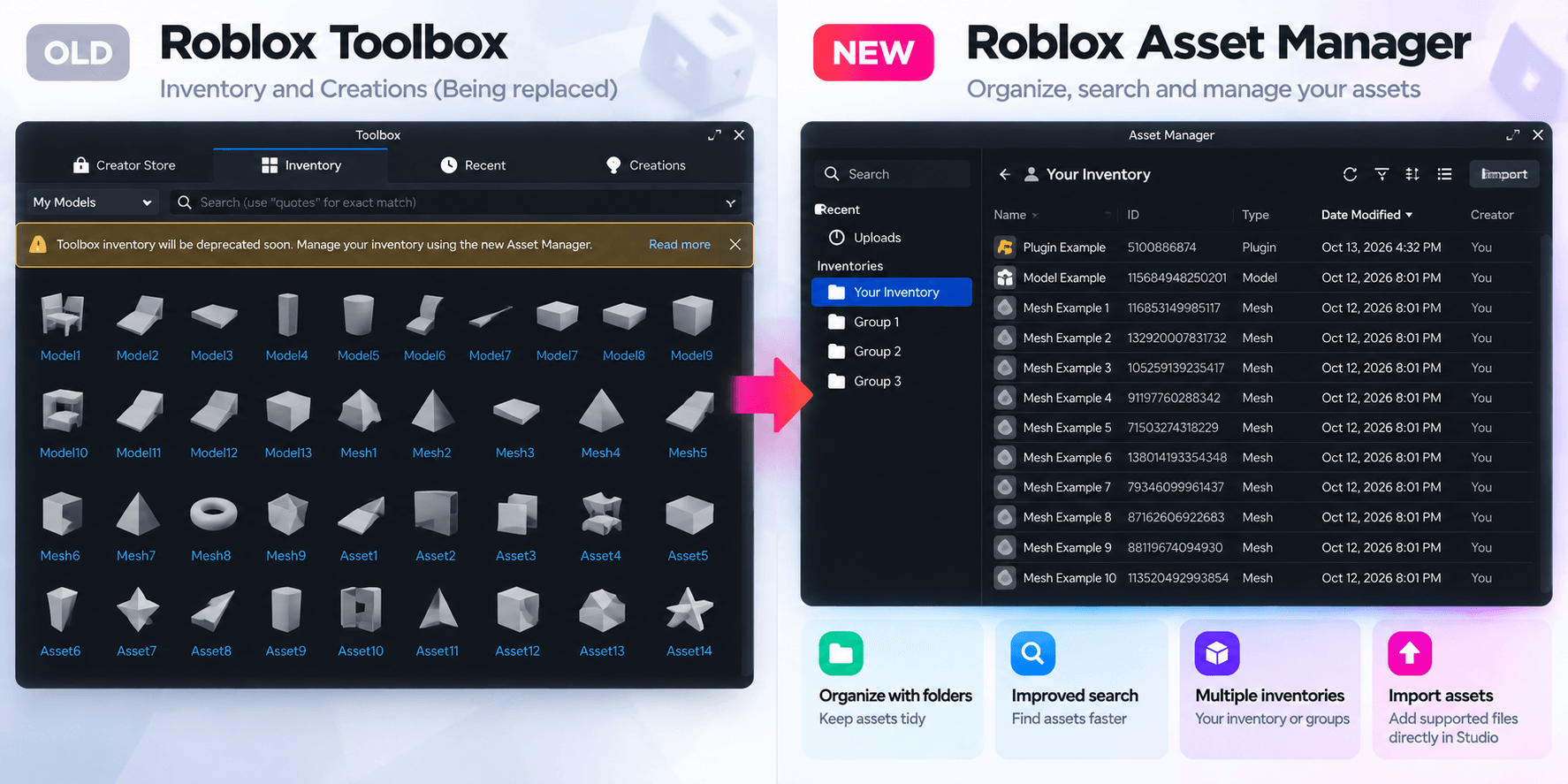
Roblox Studio has introduced a new Asset Manager, changing how creators find, organize and import assets into their games. The redesigned interface replaces the old Asset Manager and moves the Inventory and Creations sections from Roblox Toolbox into one place.
In this guide, we'll explain what's changed, where to find your old Toolbox assets, and how to use the new Roblox Asset Manager step by step.
Image: Screenshot showing the new Roblox Studio Asset Manager interface, including the inventory panel and asset library.
 Freeflow Team•Oct 19, 2026•5 min read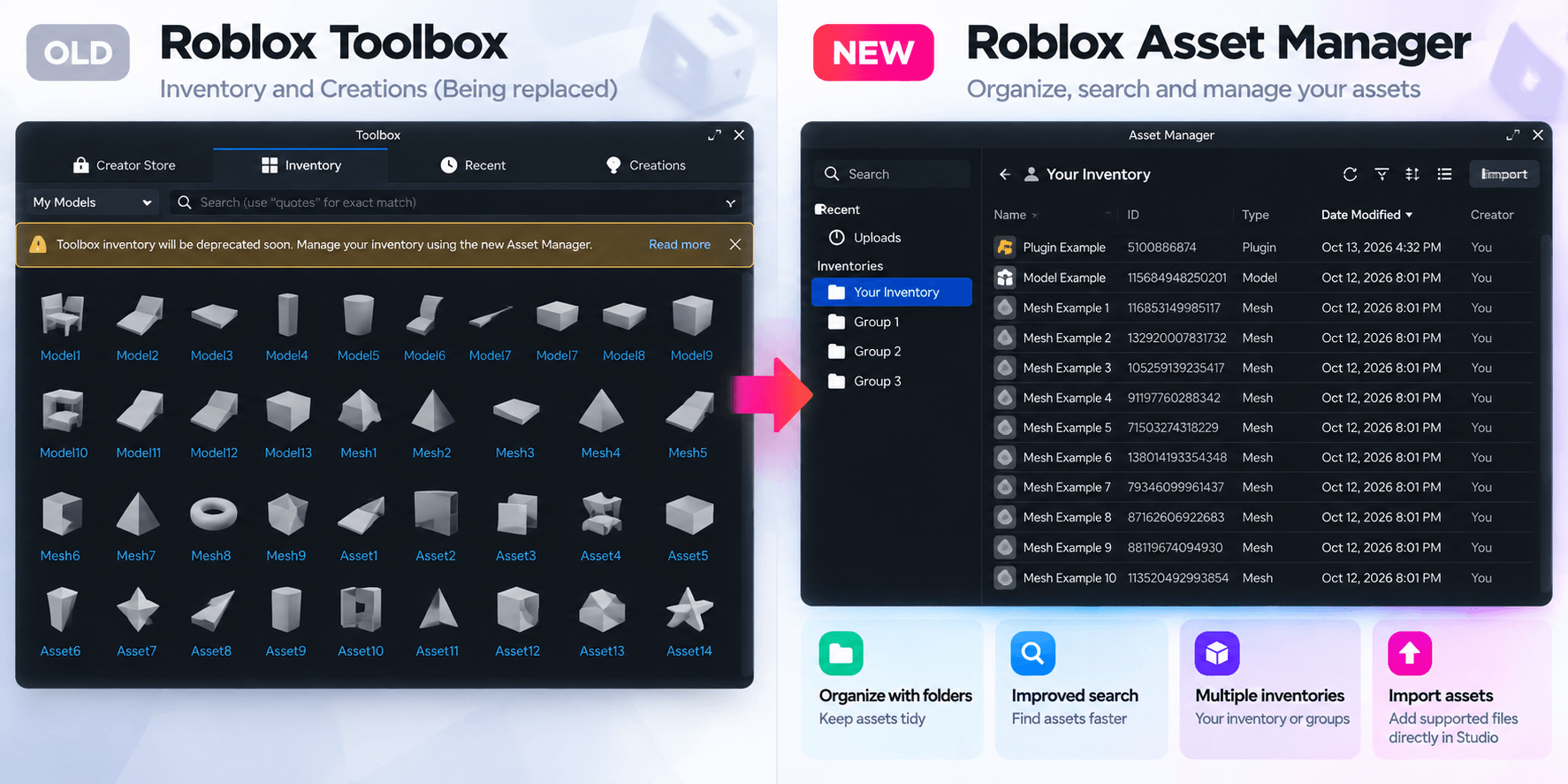
What Is the New Roblox Asset Manager?
The Roblox Asset Manager is a built-in Roblox Studio tool that allows creators to manage the assets they use when developing games.
Released on September 1, 2026, the redesigned Asset Manager introduces several improvements, including:
- Asset folders: Organize resources into folders to keep your projects tidy.
- Improved search: Find specific assets without manually browsing your entire inventory.
- Inventory management: Access personal, group and project assets in one place.
- Asset importing: Import supported assets directly into Roblox Studio.
- Simpler navigation: Manage your development resources from a single interface.
These changes make it easier to find and reuse assets, particularly when working on larger Roblox games.
Is the New Roblox Asset Manager Replacing Toolbox?
Not entirely. Roblox has moved the Inventory and Creations functionality from Toolbox into the redesigned Asset Manager, but Toolbox itself has not been removed.
The main difference is how the two tools are used:
| Feature | New Asset Manager | Roblox Toolbox |
|---|---|---|
| Browse owned assets | Yes | Moved to Asset Manager |
| Access group assets | Yes | Moved to Asset Manager |
| Organize assets into folders | Yes | No equivalent feature |
| Search your asset inventory | Yes | Moved to Asset Manager |
| Browse Creator Store assets | Not its primary purpose | Yes |
| Import supported files | Yes | Not its primary purpose |
You can still use Toolbox to discover assets from the Roblox Creator Store.
For more information, read our Roblox Toolbox guide.
How to Open the New Roblox Asset Manager
Opening Asset Manager in Roblox Studio only takes a few clicks.
- Launch Roblox Studio.
- Open an existing game or create a new project.
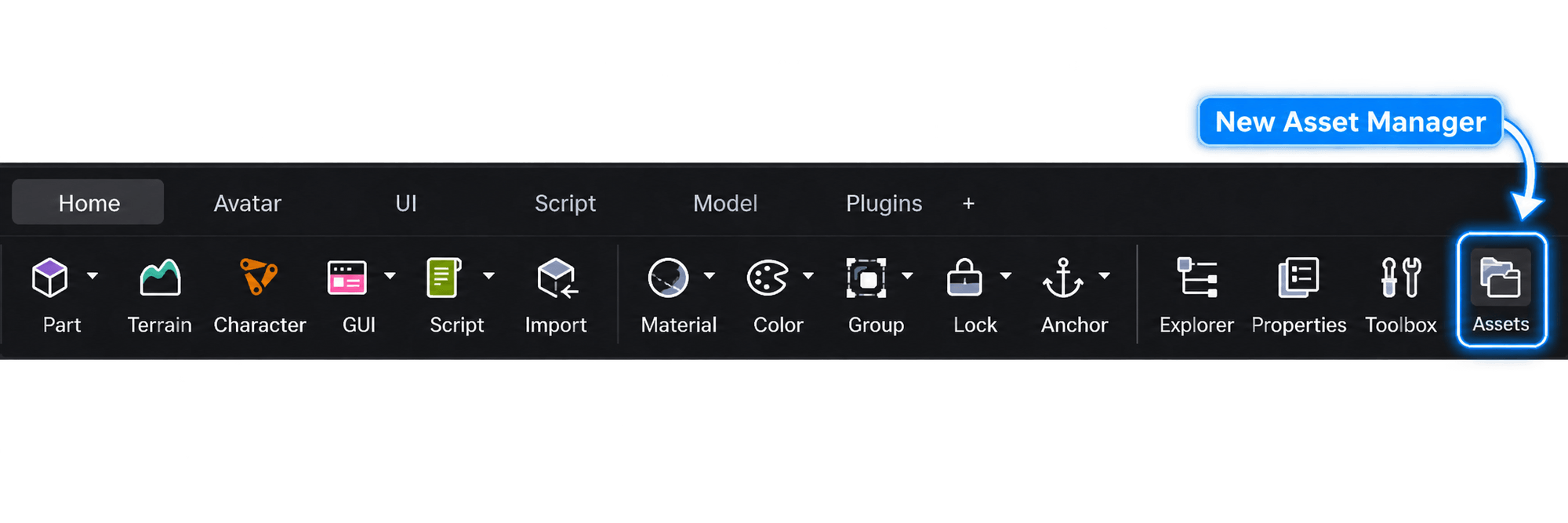
- Select the Home tab.
- Click Assets to open Asset Manager.
Alternatively, you can open it through Window > Asset Manager.
Once opened, you'll see the available inventories and asset management options.
Where Did My Roblox Toolbox Assets Go?
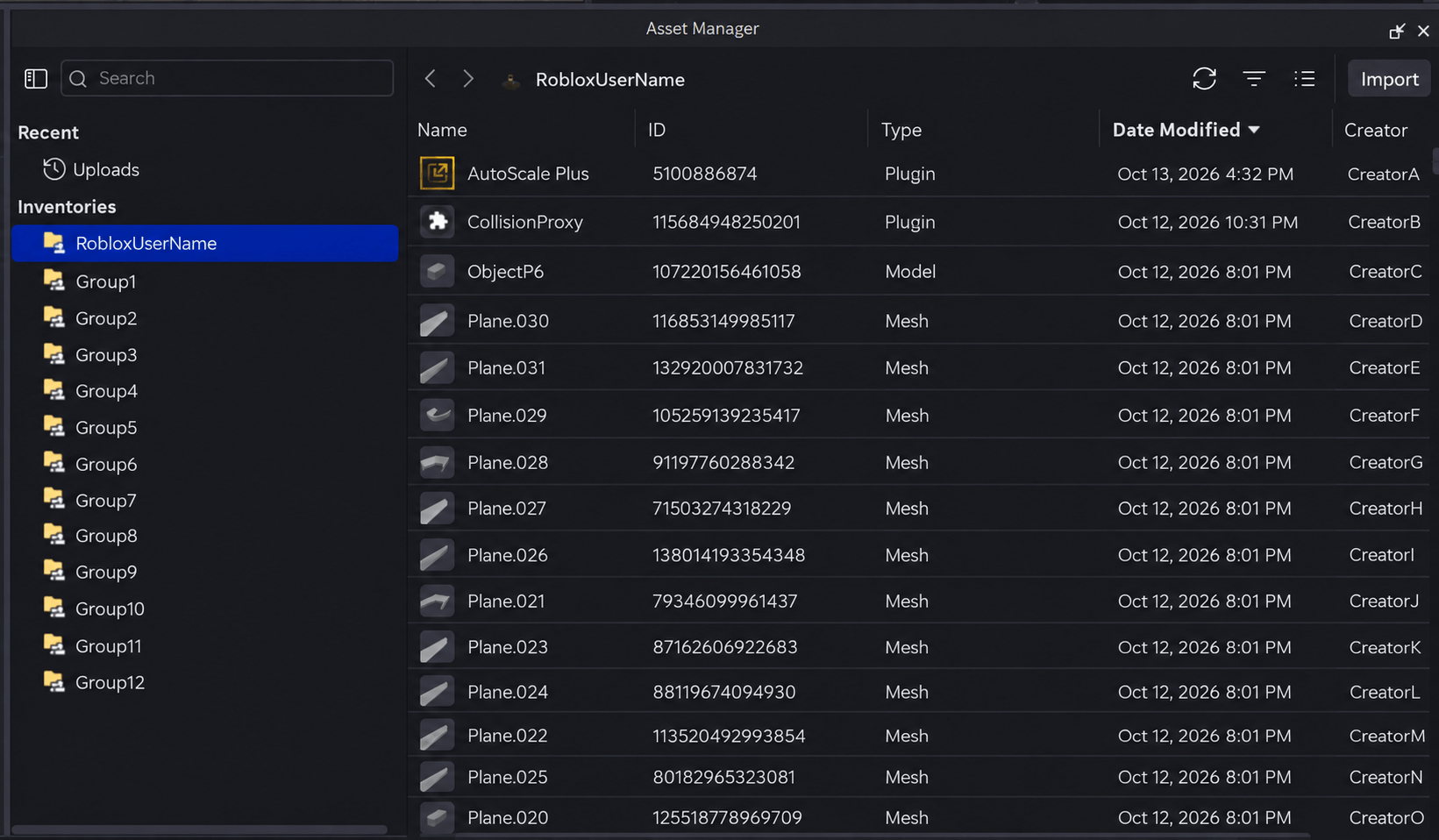
If you've updated Roblox Studio and noticed your old Toolbox inventory is missing, don't worry. The inventory functionality has moved to the new Asset Manager.
To find your assets:
- Open the new Asset Manager.
- Select your personal inventory.
- Browse your assets or use the search feature.
- Select an asset to see the available actions.
You can also switch between personal, group and project inventories where you have access.
If an asset doesn't appear, make sure you're signed into the correct Roblox account and have permission to access it.
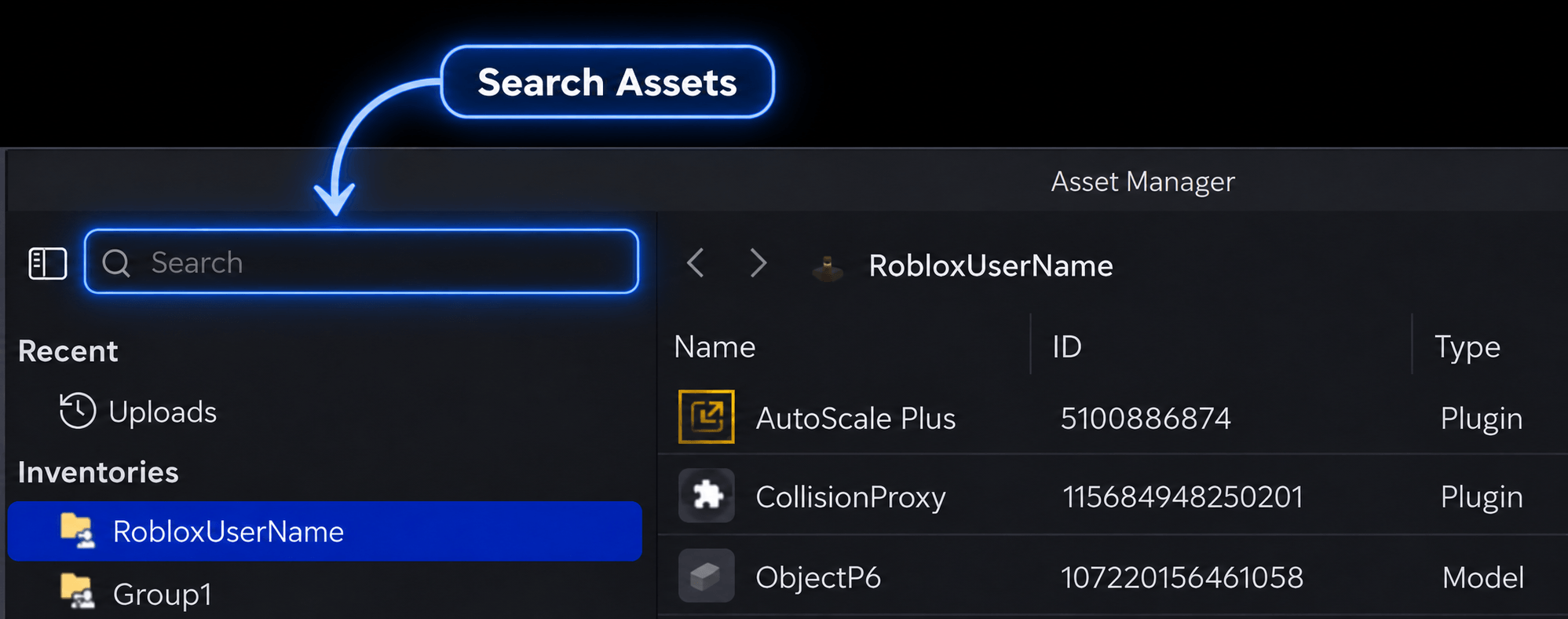
How to Search for Assets in Roblox Studio
The new Asset Manager includes improved search tools to help creators find resources more quickly.
To search for an asset:
- Open Asset Manager.
- Select the inventory you want to search.
- Enter an asset name or keyword in the search bar.
- Apply available filters to narrow the results.
- Select the asset you need.
For example, if you're developing a medieval Roblox game, searching for a particular model name may help you locate it without scrolling through your entire inventory.
How to Import Assets Into Roblox Studio
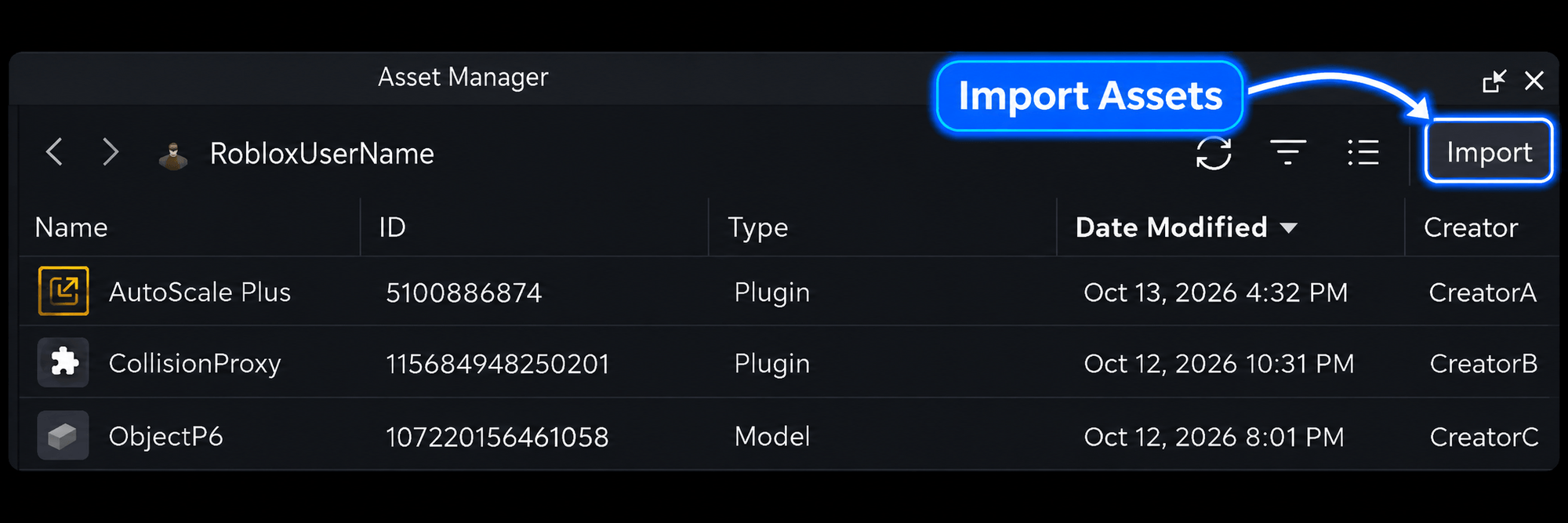
You can use Roblox Studio's importing tools to add supported assets to your development project.
To get started:
- Open your Roblox Studio project.
- Open the new Asset Manager.
- Find the relevant import option.
- Select a supported file from your computer.
- Review the available import settings.
- Complete the import and check the result.
The exact importing process depends on the file type.
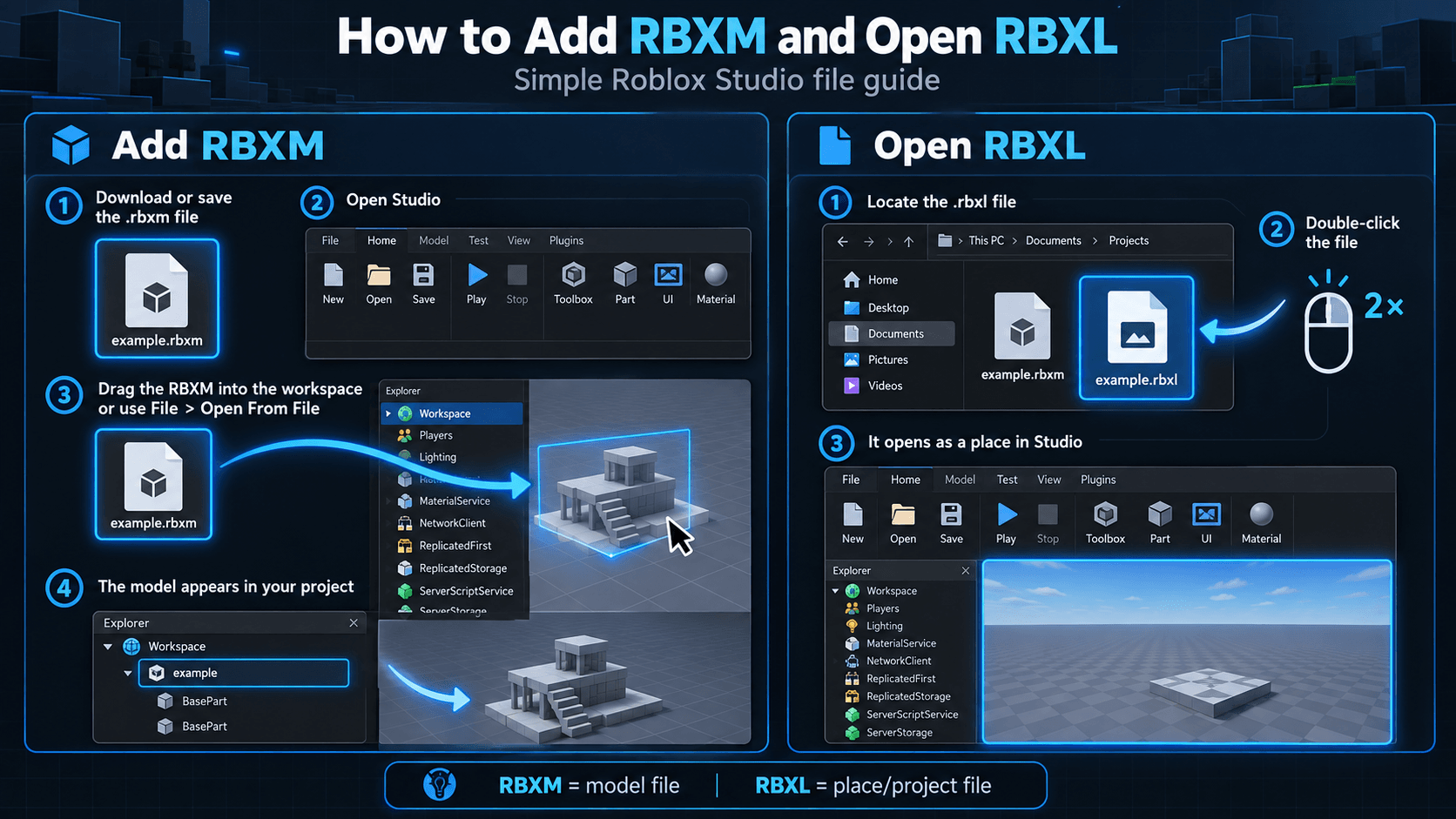
For example, images and meshes may use different importing workflows from Roblox model files such as RBXM.
Where Can You Get Free Roblox Assets?
The new Asset Manager helps you organize your resources, but you'll still need assets to build your Roblox games.
If you're looking for models, maps, game templates or interface designs, you can find free Roblox assets through the Roblox Creator Store and independent creator marketplaces.
Freeflow offers a collection of free and affordable assets for Roblox developers, including:
- Free Roblox Assets – Find free resources for your next project.
- Roblox Maps – Explore environments and ready-made maps.
- Roblox Model Packs – Find props, objects and themed model collections.
- Roblox UI Kits – Discover interfaces, icons and GUI resources.
- Roblox Scripts – Explore systems and development scripts.
- Roblox Game Templates – Start building with ready-made game foundations.
Once you've downloaded an asset, follow its installation instructions to add it to your Roblox Studio project.
Is the New Roblox Asset Manager Better Than Toolbox?
The new Asset Manager provides useful improvements for creators who regularly work with large collections of assets.
Its biggest advantages include:
- Better organization: Keep related assets together using folders.
- Faster searching: Find resources with improved inventory search.
- Centralized management: Access different inventories from one interface.
- Improved workflow: Spend less time looking for assets and more time developing games.
However, Toolbox still has an important role.
If you want to discover new assets from the Roblox Creator Store, Toolbox remains useful. If you want to manage assets you already own or have access to, the new Asset Manager is designed for that purpose.
For most Roblox creators, understanding how to use both tools will make development easier.
Frequently Asked Questions
Has Roblox Toolbox been removed?+
No. Roblox Toolbox is still available. However, its Inventory and Creations functionality has moved to the redesigned Asset Manager.
What replaced Roblox Toolbox inventory?+
The new Roblox Asset Manager now provides access to personal, group and project assets, replacing the previous inventory management workflow in Toolbox.
Where is Asset Manager in Roblox Studio?+
Open Roblox Studio, select Home, and click Assets. You can also access it through Window > Asset Manager.
Is the new Roblox Asset Manager free?+
Yes. Asset Manager is included with Roblox Studio, which is free to use.
Can I still use free Roblox models?+
Yes. You can continue finding free models through the Roblox Creator Store and other legitimate asset providers. Always check that you have permission to use an asset.
Can I organize assets into folders?+
Yes. The redesigned Asset Manager supports folders, allowing creators to organize resources within supported inventories.
Why are my Roblox assets missing?+
Your assets may be in a different inventory, associated with another Roblox account or group, or unavailable because of access permissions. Check the inventory selection and search for the asset by name.
Can I import RBXM files using the new Asset Manager?+
RBXM files can be opened or inserted into Roblox Studio using supported model workflows. They are not imported in exactly the same way as images or meshes.
What's the difference between Asset Manager and the Creator Store?+
Asset Manager helps you organize and access assets associated with your account, groups and projects. The Creator Store is a marketplace where you can discover assets, including models, plugins and other development resources.
When was the new Roblox Asset Manager released?+
Roblox announced the full release of the redesigned Asset Manager on September 1, 2026.
Final Thoughts
The new Roblox Asset Manager is a welcome improvement for creators who want a simpler way to find, organize and reuse assets in Roblox Studio.
Although some Toolbox features have moved, creators can still use Toolbox to discover new resources through the Creator Store.
If you're looking for models, maps, scripts or complete game templates to use in your next project, explore free and affordable Roblox assets on Freeflow.
Freeflow is an independent creator marketplace and is not affiliated with, endorsed by or sponsored by Roblox Corporation.