Guides
Roblox Toolbox: How to Find and Use Roblox Assets
The Roblox Toolbox is one of the main ways developers can find and add assets while building games in Roblox Studio.
Instead of creating every model, mesh, image, sound or plugin yourself, you can use the Toolbox to search for assets created by Roblox and other members of the Roblox community.
Quick answer: The Roblox Toolbox is a built-in Roblox Studio window used to search for models, meshes, images, audio, plugins and other development assets.
It is especially useful when you need to build quickly, test an idea or find a specific resource for your experience.
In this guide, we explain what the Roblox Toolbox is, how to use it, what assets you can find, how to check models before using them and where else you can find Roblox assets.
 Freeflow Team•Sep 27, 2026•Updated •11 min read
What Is the Roblox Toolbox?
The Roblox Toolbox is a window built into Roblox Studio that lets developers search for and use assets while creating a Roblox experience.
You can use the Toolbox to find assets such as:
-
Models
-
Images
-
Meshes
-
Audio
-
Plugins
-
Videos
-
Fonts
The Toolbox can also help you access assets you have previously used or uploaded yourself.
This means you can find development resources without constantly leaving Roblox Studio.
Typical Roblox Toolbox searches might include:
-
Trees and buildings
-
Vehicles
-
Furniture
-
Weapons
-
Interface elements
-
Sound effects
-
Meshes
-
Studio plugins
-
Complete models
-
Assets already in your inventory
The Roblox Toolbox is particularly useful for prototyping and speeding up game development.
The formatting does to cross.
Where Is the Toolbox in Roblox Studio?
The Roblox Toolbox contains several types of development resources.
The type of asset you need will depend on what you are building.
Roblox Models
Models are one of the most common assets found in the Roblox Toolbox.
A model can contain a single object or a group of several objects.
Examples include:
-
Houses
-
Trees
-
Vehicles
-
Furniture
-
Weapons
-
Buildings
-
Props
-
Environment objects
Some Roblox models are purely visual.
Others can contain scripts, sounds, effects and other components.
Because a model can contain several different objects, it is worth checking what is inside before using it in your game.
Roblox Meshes
Meshes are 3D objects that can provide more detailed shapes than standard Roblox parts.
Developers often use meshes for:
-
Props
-
Furniture
-
Buildings
-
Weapons
-
Environmental objects
-
Decorations
-
Vehicles
Meshes can help you build more detailed environments without modelling every object yourself.
Images and Decals
Images and decals can be used throughout a Roblox game.
Common uses include:
-
Signs
-
Posters
-
Icons
-
UI graphics
-
Textures
-
Decorations
-
Branding
You can search for suitable images through Roblox or upload your own assets.
Roblox Audio
Audio assets can help make a Roblox environment feel more complete.
You may use audio for:
-
Sound effects
-
Ambient sounds
-
Interface sounds
-
Environmental audio
-
Music where permitted
Even small audio effects can make a game feel considerably more polished.
Roblox Plugins
Plugins add extra tools and functionality to Roblox Studio.
Plugins are generally designed to help developers create or manage projects rather than appear directly inside the game.
They can help with tasks such as:
-
Building
-
Terrain creation
-
Animation
-
Modelling
-
Organisation
-
Development workflows
Important: Always check what a plugin does and who created it before installing it.
What Is the Roblox Creator Store?
The Roblox Creator Store is Roblox's marketplace for development assets.
It contains resources created by Roblox and independent creators.
These can include:
-
Models
-
Plugins
-
Audio
-
Images
-
Meshes
-
Development tools
-
Other Roblox Studio resources
The Creator Store and Roblox Toolbox are closely connected.
The Toolbox gives developers a convenient way to search for and use Creator Store assets while working inside Roblox Studio.
Roblox Toolbox vs Creator Store
The Roblox Toolbox and Creator Store are related, but they serve slightly different purposes.
| Feature | Roblox Toolbox | Creator Store |
|---|---|---|
| Built into Roblox Studio | Yes | Accessible through Roblox |
| Search for development assets | Yes | Yes |
| Insert assets while building | Yes | Indirectly |
| Browse community resources | Yes | Yes |
| Marketplace-style browsing | Limited | Yes |
| Best for quick Studio use | Yes | Sometimes |
Quick answer: The Toolbox is the interface inside Roblox Studio used to find and manage assets. The Creator Store is the marketplace containing many of the assets available through it.
How to Search the Roblox Toolbox
Using specific searches usually produces better results than very broad terms.
Instead of searching:
House
try:
Low poly suburban house
Instead of:
Car
try:
Low poly police car
Instead of:
UI
try:
Simulator inventory UI
Specific search phrases can help you find assets that are much closer to what your game actually needs.
You should also use available filters where possible to narrow down the results.
How to Add a Toolbox Asset to Roblox Studio
Adding an asset from the Toolbox is normally straightforward.
-
Search for the asset you want.
-
Select the asset.
-
Insert it into your Roblox Studio project.
-
Open the Explorer window.
-
Check exactly what was added.
This is particularly important with larger models because they can contain several objects, folders or scripts.
Tip: After inserting a large model, expand it in Explorer before continuing your build.
Is the Roblox Toolbox Safe?
The Roblox Toolbox itself is part of Roblox Studio, but developers should still inspect community-created assets before using them in an important project.
Some Roblox models can contain scripts and other components.
Before using an unfamiliar model, check:
-
Who created the asset
-
What objects are inside it
-
Whether it contains scripts
-
Whether those scripts are required
-
Whether unexpected objects have been inserted
-
Whether the model works correctly when tested
If you do not understand what a script does, avoid adding it permanently to your main game until it has been reviewed.
Safety tip: The best habit is to inspect unfamiliar assets before keeping them in a production game.
How to Check a Roblox Toolbox Model
After inserting a model, open Roblox Studio's Explorer.
Expand the model and look through its contents.
Pay particular attention to:
-
Scripts
-
LocalScripts
-
ModuleScripts
-
RemoteEvents
-
RemoteFunctions
-
Unexpected folders
-
Objects placed outside the main model
A script being present does not automatically mean an asset is unsafe.
Many useful models require scripts to function.
The important thing is understanding what has been added to your project.
For larger assets, consider testing them in a separate Roblox Studio place first.
Are Roblox Toolbox Models Free?
Many Roblox Toolbox and Creator Store assets are available for free.
This makes the Toolbox useful for:
-
Learning Roblox Studio
-
Building prototypes
-
Testing new ideas
-
Finding simple props
-
Creating placeholder environments
There are also paid development resources available from Roblox creators and independent marketplaces.
Paid resources may provide larger packs, complete environments, templates or more advanced systems.
Free Roblox Toolbox Assets vs Paid Assets
Free and paid Roblox assets often solve different problems.
Free Roblox Assets Can Be Useful For
-
Learning
-
Prototyping
-
Small props
-
Placeholder content
-
Testing game ideas
Paid or Curated Roblox Assets Can Be Useful For
-
Complete maps
-
Matching model packs
-
Advanced UI systems
-
Game templates
-
Larger development systems
-
Commercial projects
Neither option is automatically better.
The best choice depends on the type of project you are building.
Roblox Toolbox Alternatives
The Roblox Toolbox is extremely useful because it is built directly into Roblox Studio.
However, it is not the only place developers can find Roblox development assets.
Independent Roblox marketplaces can be useful when you need larger or more specialised resources.
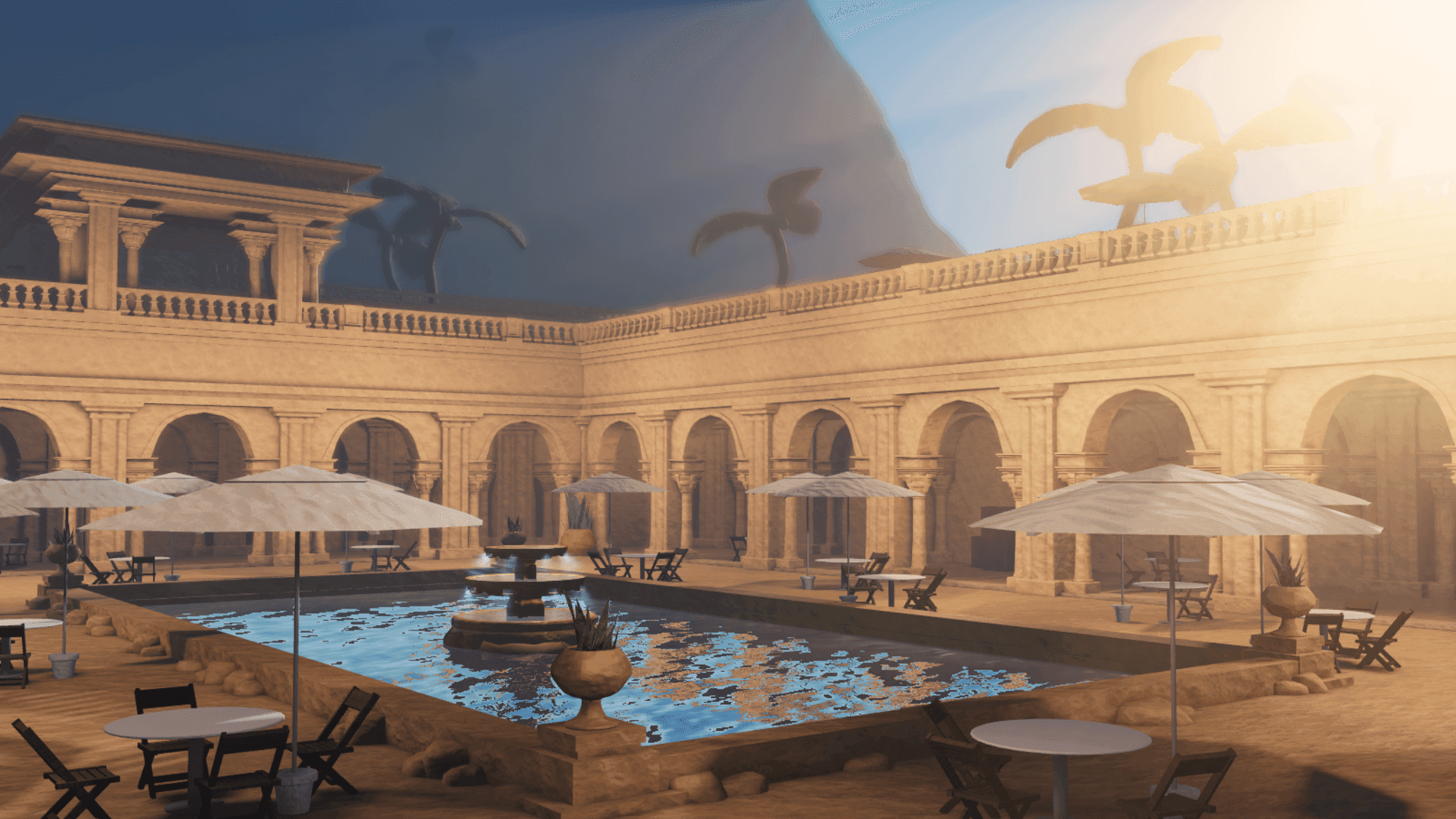
Freeflow provides free and premium Roblox assets including maps, models, scripts, UI resources, templates and asset packs.
Roblox Maps
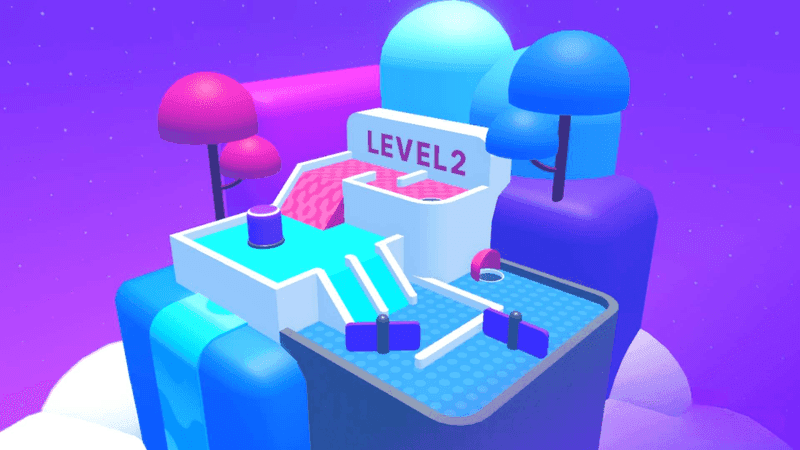
Complete maps can save developers from building an entire environment from scratch.
Browse Roblox maps on Freeflow
Roblox UI and GUI Assets
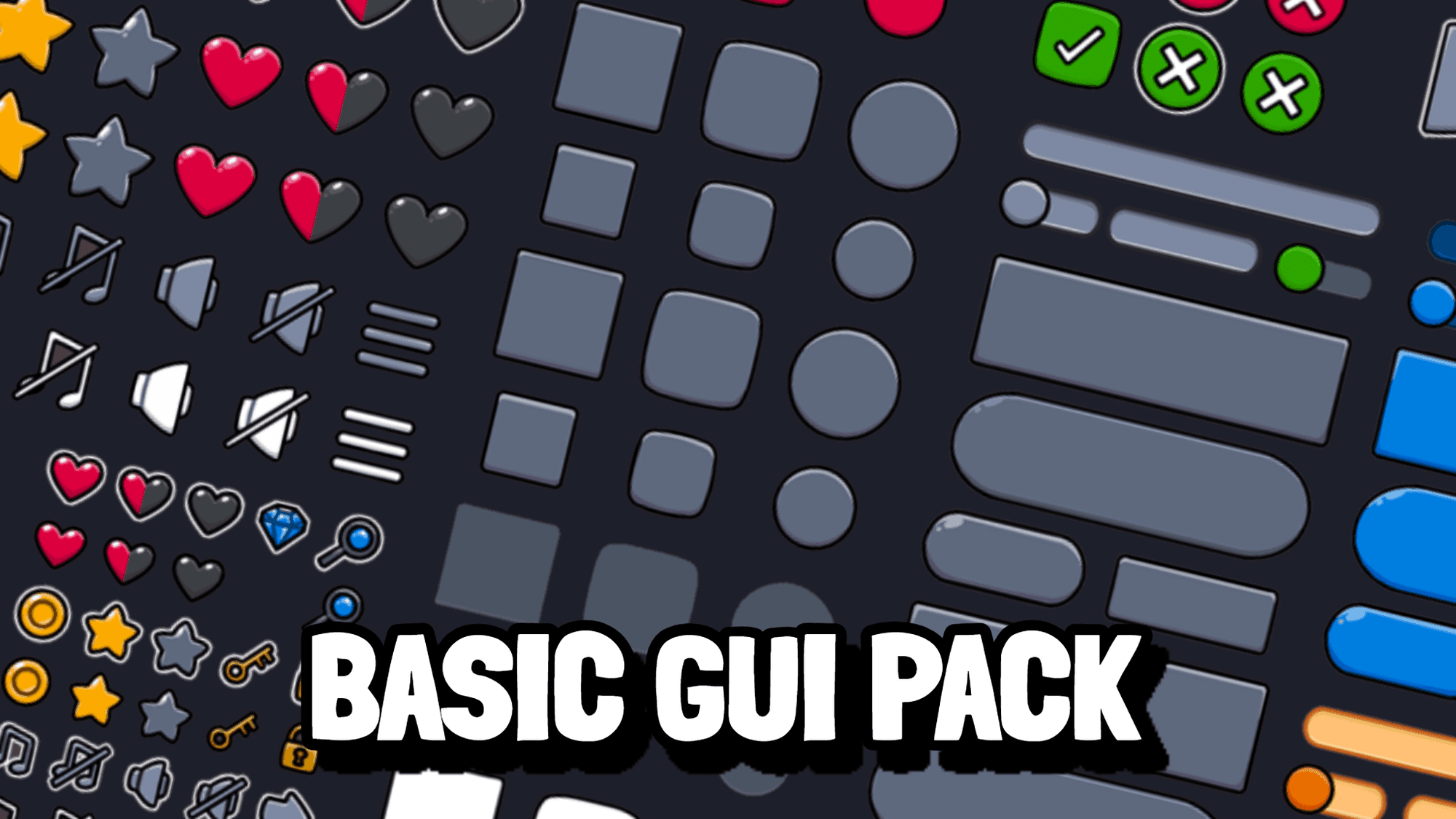
UI and GUI resources can provide a starting point for menus, shops, inventories, HUDs and other interfaces.
Browse Roblox UI assets on Freeflow
Roblox Scripts
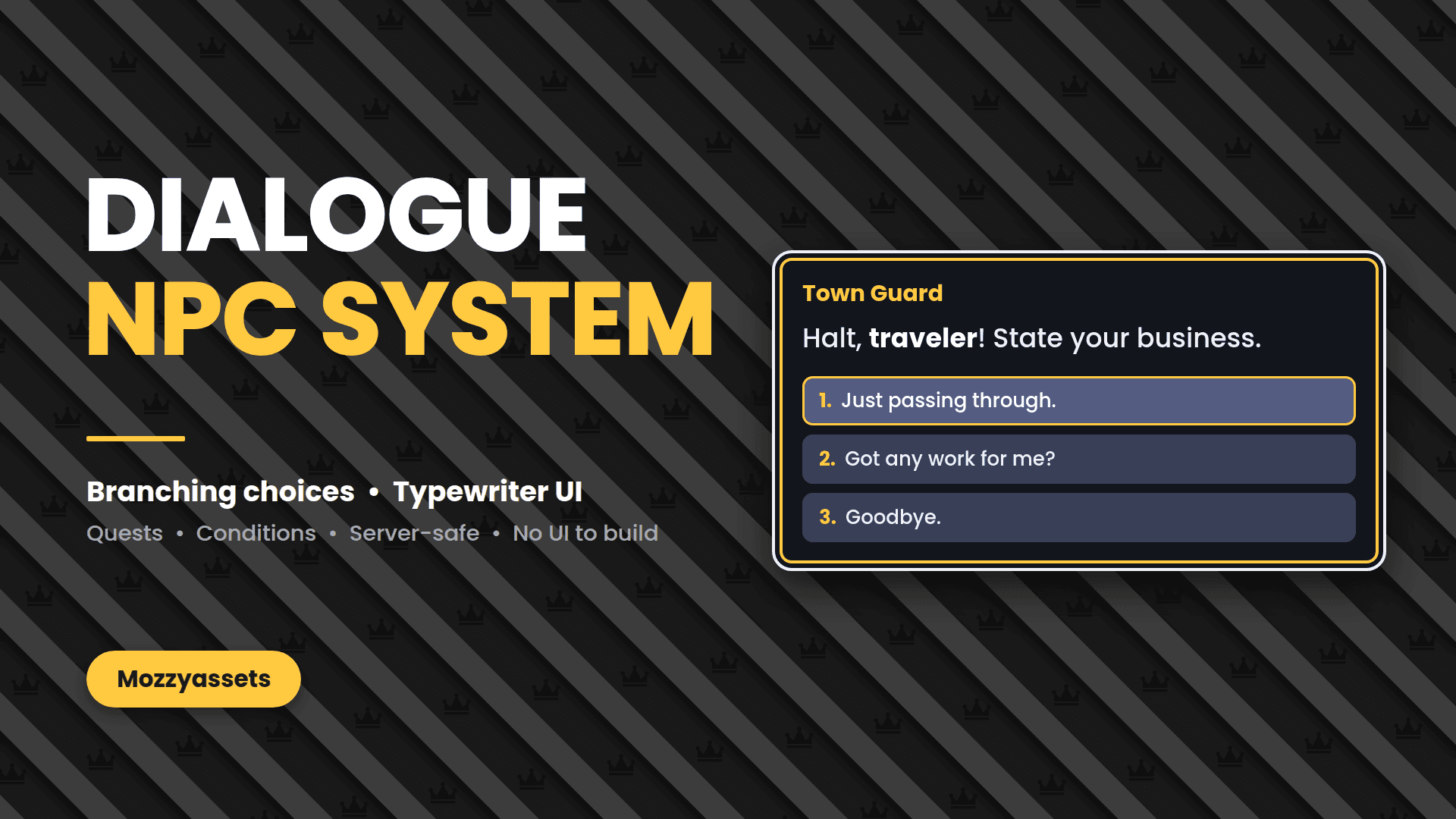
Scripts and development systems can help add functionality to a Roblox experience without rebuilding every feature from the beginning.
Browse Roblox scripts on Freeflow
Roblox Asset Packs
Roblox asset packs contain groups of related assets designed to work together.
They are useful when you want multiple objects to share the same visual style.
Read our guide to Roblox asset packs
Free Roblox Assets
Developers working with a limited budget can also find free Roblox maps, models, UI, scripts and other resources.
Roblox Toolbox vs Dedicated Asset Marketplaces
The Roblox Toolbox is ideal when you need a quick individual asset while working inside Studio.
A dedicated Roblox asset marketplace can be more useful when you need:
-
Complete maps
-
Large asset packs
-
Game templates
-
Matching models
-
Advanced UI
-
Development systems
-
Curated resources
Many Roblox developers use both.
The Toolbox can be useful for individual assets, while marketplaces can help when you need a larger collection of resources designed to work together.
| Need | Roblox Toolbox | Dedicated Asset Marketplace |
|---|---|---|
| Quick individual model | Excellent | Available |
| Free community assets | Excellent | Available |
| Complete map | Available | Often easier to find |
| Matching asset pack | Available | Strong focus |
| Game template | Less focused | Common |
| Complete UI system | Available | Common |
| Curated products | Varies | Often a main focus |
| Direct Studio integration | Yes | Usually no |
When Should You Use the Roblox Toolbox?
The Roblox Toolbox is particularly useful for:
-
Prototypes
-
Testing ideas
-
Small props
-
Placeholder assets
-
Plugins
-
Audio
-
Images
-
Learning Roblox development
It is also useful when you need something quickly without leaving Roblox Studio.
When Should You Use an Asset Pack Instead?
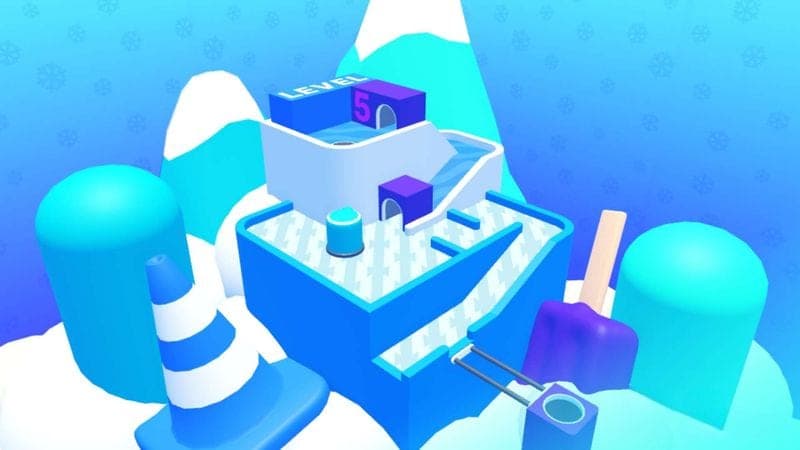
An asset pack can make more sense when you need many related objects.
For example, imagine you are building a city.
You might need:
-
Benches
-
Street lights
-
Bins
-
Road signs
-
Buildings
-
Barriers
-
Bus stops
-
Trees
Finding each asset separately can result in objects with completely different visual styles.
A matching asset pack can make the environment look much more consistent.
The same applies to games based around:
-
Cities
-
Medieval environments
-
Military settings
-
Simulators
-
Roleplay
-
Racing
-
Restaurants
-
Hospitals
-
Police games
Can You Make a Roblox Game Using Toolbox Assets?
Yes.
Toolbox assets can be useful throughout Roblox game development.
However, relying entirely on unrelated pre-made models can make a game feel inconsistent.
A better approach is often to combine several methods:
-
Build important gameplay systems yourself
-
Use Toolbox assets where they save time
-
Use matching asset packs where consistency matters
-
Modify assets to fit your game's style
-
Create custom assets for the features that make your game unique
Pre-made assets should help you build faster rather than define your entire game.
How to Make Toolbox Assets Fit Your Game
Even a useful asset may need editing before it matches your project.
You can customise things such as:
-
Materials
-
Colours
-
Scale
-
Lighting
-
Textures
-
UI styling
-
Object placement
-
Effects
For example, you might find a useful building model but change its materials and colours so it better matches the rest of your environment.
Should Roblox Developers Use Free Models?
There is nothing inherently wrong with using free models.
They can save a considerable amount of development time.
The important part is choosing models carefully and understanding what you are adding.
Free models are most useful when:
-
You know what the asset contains
-
It fits the style of your game
-
You inspect included scripts
-
You customise it where necessary
-
You test it properly
You do not need to build every chair, tree or street lamp yourself if an appropriate existing asset can do the job.
Finding More Roblox Assets
The Roblox Toolbox is one of the easiest ways to find Roblox assets because it is integrated directly into Roblox Studio.
Developers can also find resources through:
-
Roblox Creator Store
-
Custom-created assets
-
Independent Roblox marketplaces
-
Roblox development communities
-
Complete asset packs
-
Game templates
Using several sources can give you more choice than relying on one library alone.
Freeflow provides a growing collection of Roblox maps, models, scripts, UI assets, templates and other development resources.



Frequently Asked Questions
What is the Roblox Toolbox?+
The Roblox Toolbox is a window inside Roblox Studio that lets developers search for models, images, meshes, audio, plugins and other development assets.
Where is the Toolbox in Roblox Studio?+
The Toolbox can be opened from within Roblox Studio. Once opened, it allows developers to search for and insert assets into their project.
Is the Roblox Toolbox free?+
The Toolbox is part of Roblox Studio, and many assets available through Roblox are free to use. Other development resources may also be available as paid products.
Are Roblox Toolbox models safe?+
Community-created models should be inspected before being used in an important project. Check what the model contains and review unfamiliar scripts before keeping them in your game.
Can Roblox Toolbox models contain scripts?+
Yes. Models can contain scripts and other objects. Scripts are not automatically unsafe, but you should understand what unfamiliar code does before using it.
What is the difference between Roblox Toolbox and Creator Store?+
The Toolbox is the Studio interface used to find and manage assets. The Creator Store is Roblox's marketplace containing many of the assets available to creators.
Can you use Roblox Toolbox models in your game?+
Yes. Toolbox models can be used when building Roblox experiences, although developers should inspect and test assets before adding them permanently.
What are alternatives to the Roblox Toolbox?+
Alternatives include creating your own assets, using the Roblox Creator Store and browsing independent Roblox asset marketplaces such as Freeflow.
Where can I find free Roblox assets?+
Free Roblox assets can be found through Roblox as well as independent marketplaces and creator communities. You can also read our guide to finding free Roblox assets.
Final Thoughts
The Roblox Toolbox is one of the most useful tools available to Roblox developers.
It provides quick access to models, meshes, images, audio, plugins and other resources directly inside Roblox Studio.
For prototypes, smaller assets and quick development work, it can save a significant amount of time.
For larger projects, developers can combine Toolbox assets with custom work, complete asset packs, maps, templates and curated resources.
The important thing is to choose assets carefully, inspect what you are adding and use them in a way that improves your game.