Guides
Best Roblox Studio Plugins for Developers
Discover useful Roblox Studio plugins for building, UI, terrain, lighting, UGC creation and other development workflows.
Roblox Studio already includes many useful development tools, but plugins can make common tasks faster and easier.
From building large environments to adjusting colours, creating terrain and working with UI, the right plugins can reduce repetitive work and improve your Roblox Studio workflow.
 Freeflow Team•Oct 2, 2026•11 min read
What Are Roblox Studio Plugins?
Roblox Studio plugins are add-on tools that extend what developers can do inside Roblox Studio.
Plugins can help with a wide range of development tasks:
| Plugin use | What it can help with |
|---|---|
| Building | Speed up construction and repetitive building tasks |
| Modelling | Create, adjust and organise 3D objects more efficiently |
| Terrain creation | Build and edit landscapes, islands, hills and environments |
| Lighting | Save, adjust and test lighting setups |
| UI design | Create and manage interface elements and visual layouts |
| Colour adjustment | Recolour parts, models and environments more quickly |
| Character workflows | Work with avatars, characters, accessories and testing |
| UGC creation | Support avatar-item and creator workflows |
| Visual effects | Help with beams, animations and other visual elements |
| Development productivity | Reduce repetitive work and improve overall workflow |
Some plugins are designed for one specific task, while others provide a collection of tools for a wider development workflow.
Freeflow offers a curated collection of Roblox developer tools and plugins designed to enhance your workflow and speed up production.
Our plugin collection covers tools for building, UI design, scripting, optimisation and other areas of Roblox development.
Best Roblox Studio Plugins
Below are some Roblox Studio plugins worth exploring.
Live Mirror
Live Mirror is useful for creators working on symmetrical builds and models.
Instead of manually recreating the same geometry on both sides of a project, a mirroring workflow can make it easier to build:
- Buildings
- Vehicles
- Props
- Structures
- Environment assets
This can be especially useful when working on larger models where keeping both sides consistent would otherwise take more time.

Image Crop
Image Crop is aimed at creators working with images and graphical assets.
It can be useful when preparing visual content for:
- User interfaces
- Thumbnails
- Icons
- Game graphics
- Other image-based assets
For developers regularly working with graphics inside their Roblox workflow, small image utilities can help reduce the need to switch between different applications.

UGC Makers Toolbox
UGC Makers Toolbox is designed for creators working with Roblox avatar and UGC content.
Tools like this can help simplify common creator workflows when preparing accessories and other avatar-related assets.
It may be useful for:
- Avatar accessories
- UGC projects
- Creator assets
- Thumbnail preparation
- Testing workflows

Lighting Settings Saver
Lighting can completely change how a Roblox environment looks.
Lighting Settings Saver is useful for developers who want to work with different lighting setups without repeatedly recreating the same settings.
This can help when testing:
- Day and night environments
- Different moods
- Atmosphere settings
- Map lighting
- Visual styles

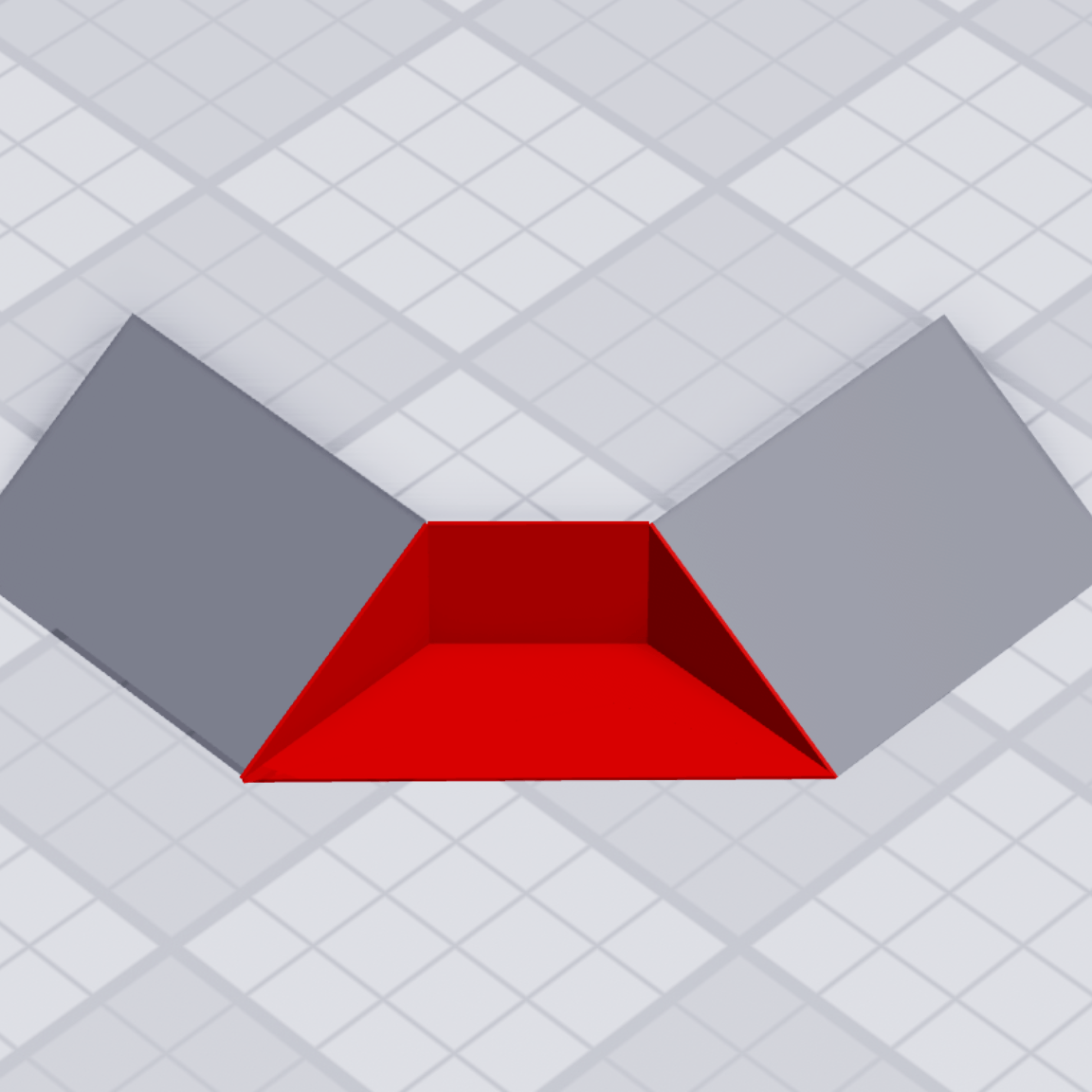
Gap Fill
Gap Fill is a building-focused plugin designed to help creators fill spaces between parts.
This can be particularly useful when working with:
- Angled structures
- Walls
- Bridges
- Buildings
- Detailed map geometry
Plugins that automate small building tasks can save a surprising amount of time across larger projects.
Celestial Dragger
Celestial Dragger is aimed at creators working with environmental and celestial elements inside Roblox Studio.
It can be useful when adjusting scenes where the sky, sun or other environment settings form an important part of the overall look.
This makes it most relevant to:
- Environment creators
- Map designers
- Lighting workflows
- Scene development

Archimedes
Archimedes is a popular type of building tool used for creating repeated curved structures.
Curves can be awkward to build manually from individual Roblox parts, especially when each section needs to follow a consistent angle.
A tool like Archimedes can be useful for:
- Curved roads
- Circular buildings
- Tunnels
- Arches
- Decorative structures
Hat Importer
Hat Importer is aimed at creators working with Roblox avatar accessories.
It can make it easier to bring hat-related assets into a development project for testing or creator workflows.
This may be useful when working with:
- Avatar accessories
- Character design
- UGC assets
- Hat testing
- Customisation systems

Color Adjust
Color Adjust can help creators modify the colours of parts and models more efficiently.
This is particularly useful when you want to experiment with the overall appearance of a build without manually editing every object individually.
Possible uses include:
- Recolouring maps
- Changing themes
- Matching asset colours
- Creating variations
- Testing different visual styles

Beam Handles
Beams are commonly used in Roblox for visual effects and connections between different points.
Beam Handles can make beam-related workflows easier to manage.
This can be useful for creating:
- Lasers
- Cables
- Energy effects
- Connections
- Visual effects

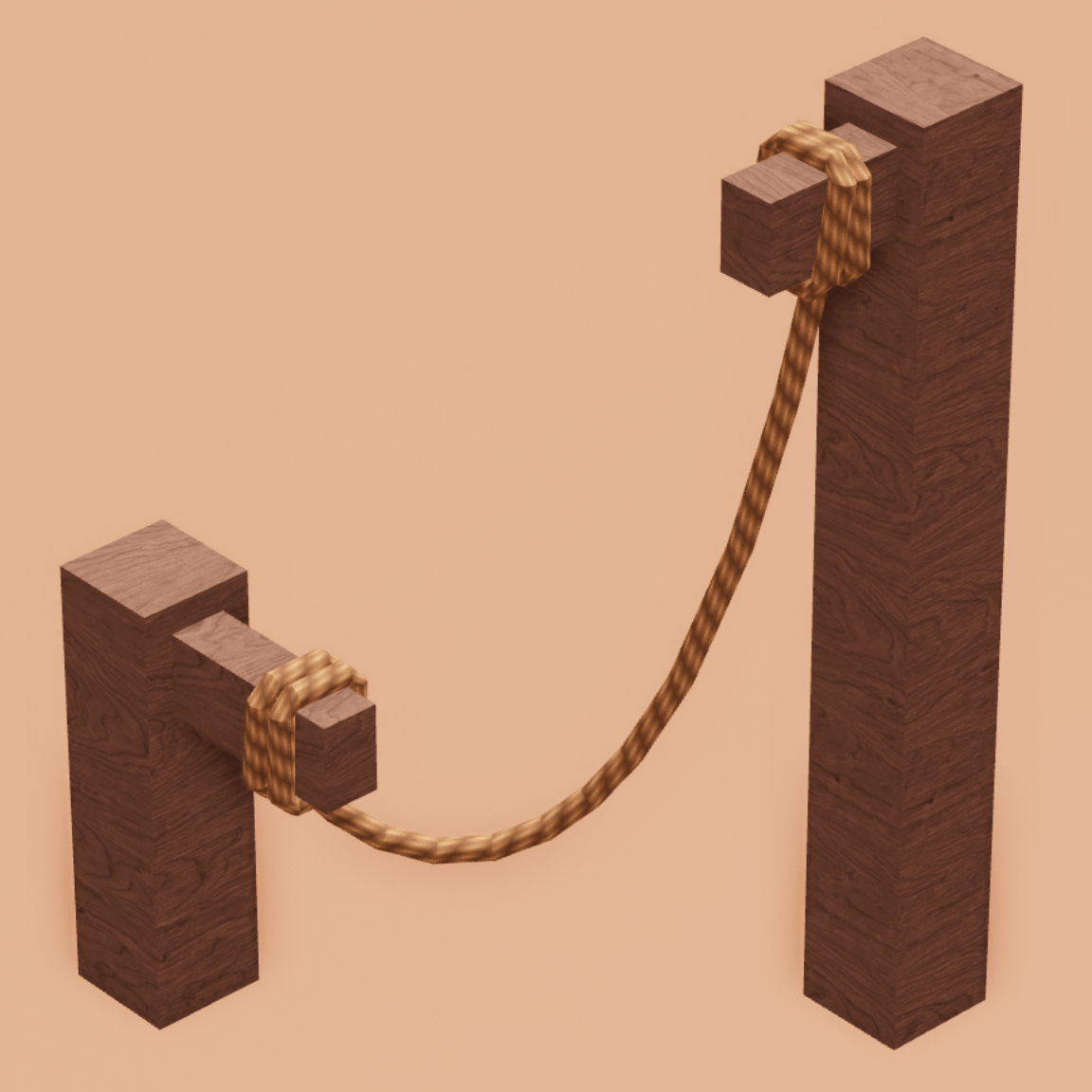
RopeMaster
RopeMaster is aimed at creators who need rope-style structures inside their projects.
Instead of manually building every section, a specialised tool can make it easier to create repeated or connected rope elements.
Possible uses include:
- Rope bridges
- Hanging objects
- Cables
- Decorative structures
- Environment details
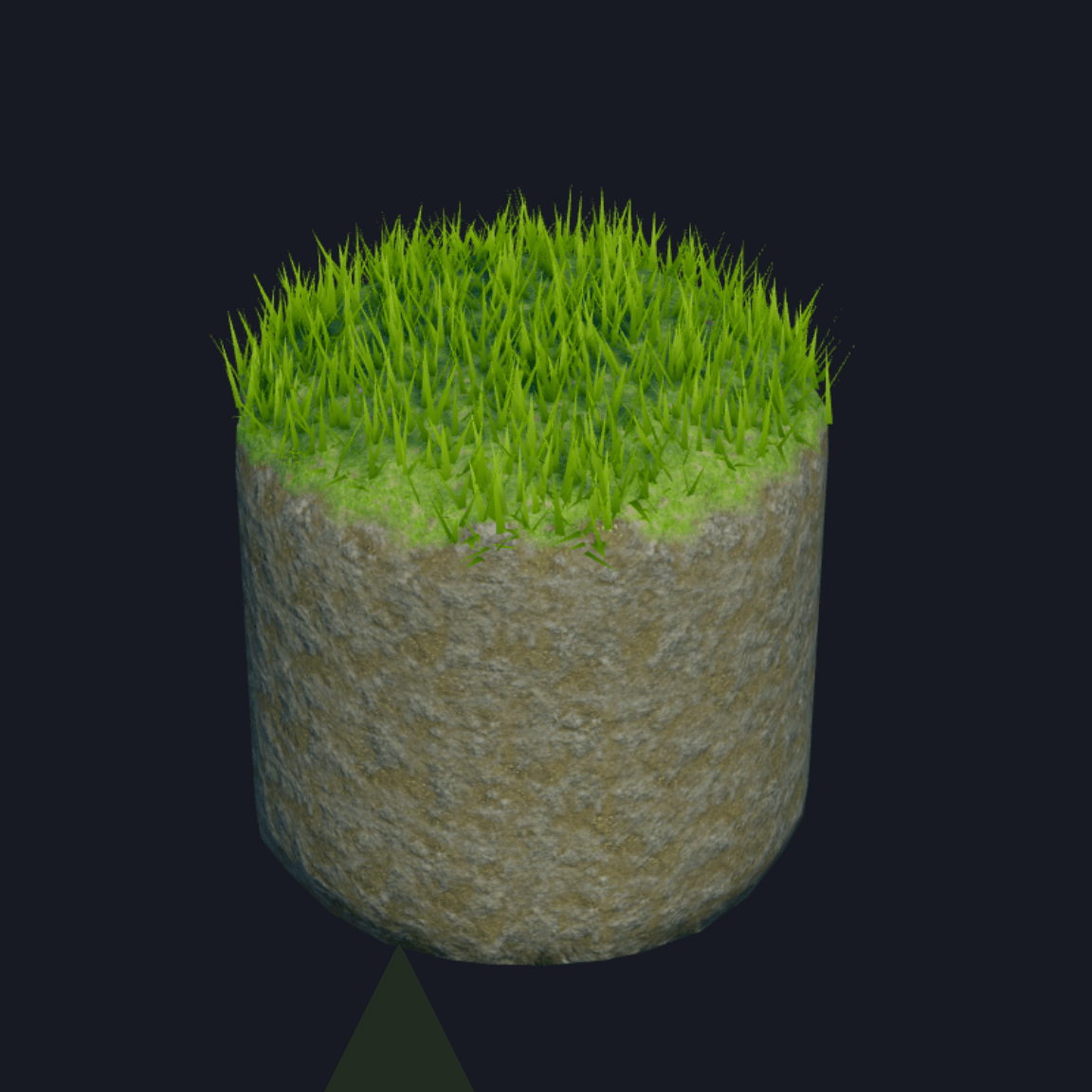
Part to Terrain
Part to Terrain can be useful for map creators who prefer to design shapes using Roblox parts before turning them into terrain.
This gives creators another way to plan and shape environments.
It can be useful for:
- Mountains
- Islands
- Hills
- Caves
- Landscape blockouts
If you are interested in map development, browse our Roblox maps.
Character Loader
Character Loader can help developers bring Roblox characters into Studio for testing and development.
Character tools can be useful when working on:
- Avatars
- Animations
- Accessories
- Character systems
- Screenshots
- Gameplay testing

Brushtool
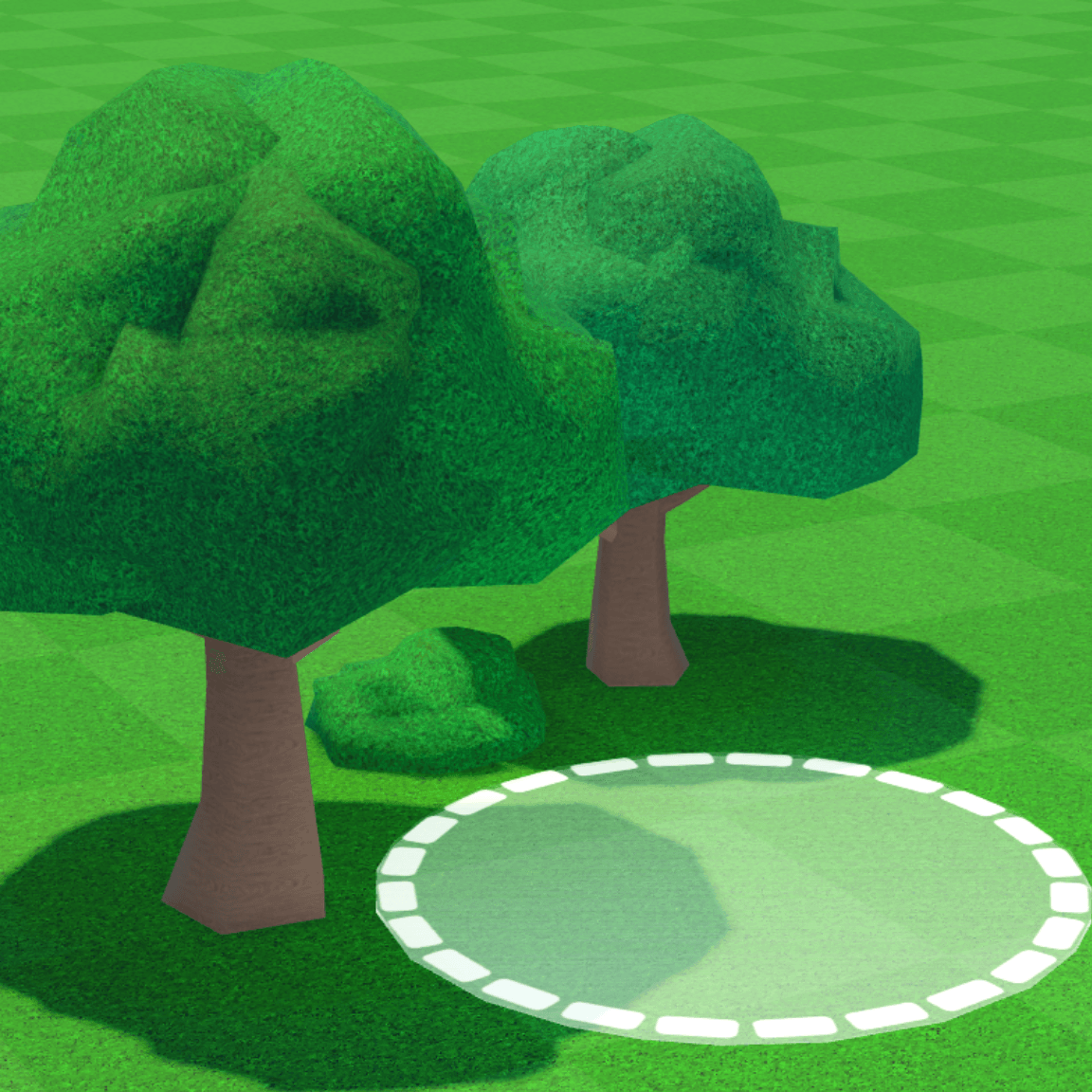
Brushtool is useful for creators who need to place many similar objects across an environment.
Instead of placing each object individually, a brush-style workflow can make environment building much faster.
This is particularly useful for:
- Trees
- Rocks
- Plants
- Props
- Natural environments
- Large Roblox maps
For more development resources, browse our Roblox assets.
Wall Creator
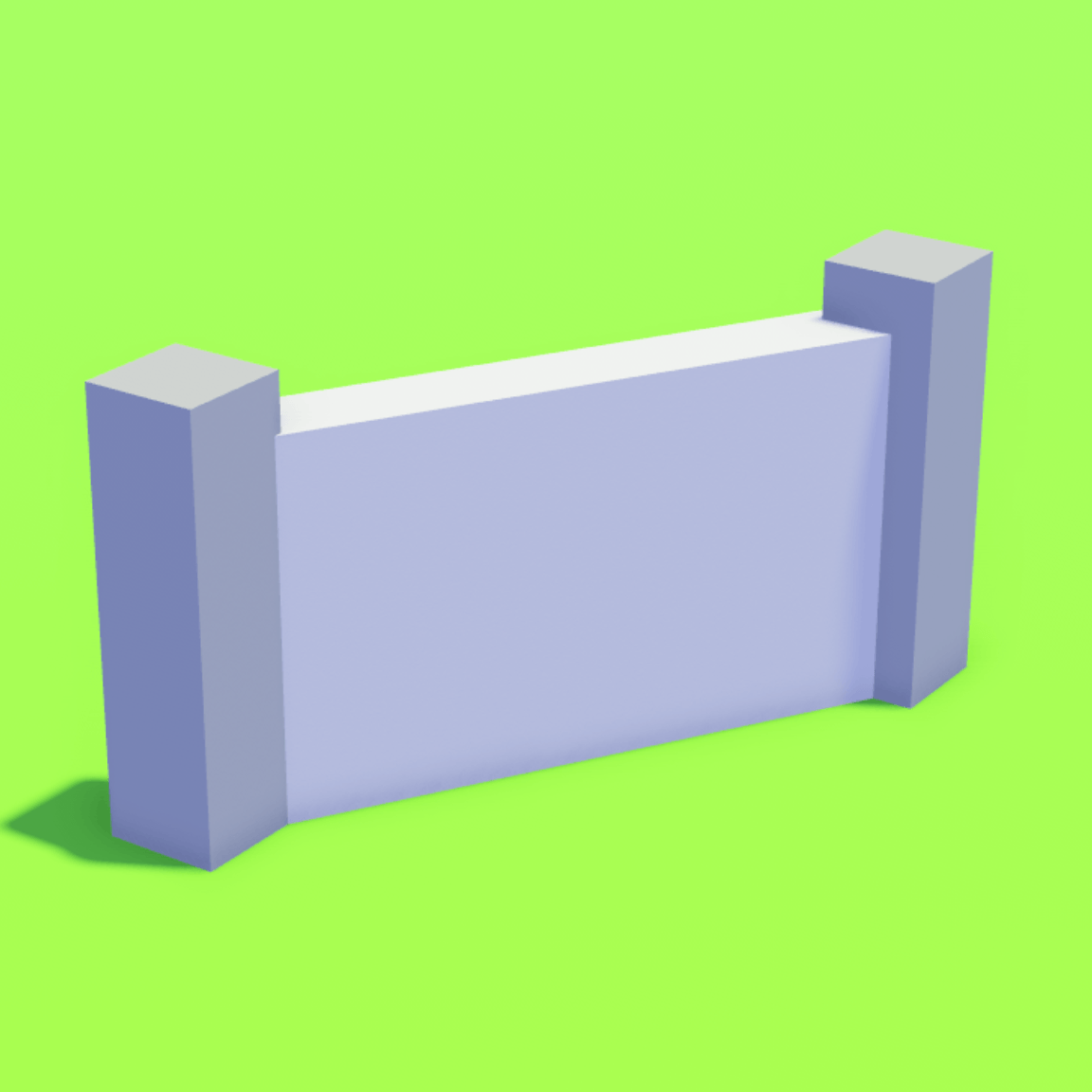
Building long walls or fences manually can involve a lot of repetitive positioning.
Wall Creator is designed to simplify this kind of construction workflow.
It can be useful for:
- Buildings
- Walls
- Fences
- Compounds
- Perimeter structures
- Map development
Part Picker
Large Roblox projects can contain hundreds or thousands of individual parts.
Part Picker is aimed at making it easier to work with and select objects inside more complicated Studio projects.
This can be especially useful for:
- Large maps
- Detailed models
- Complex scenes
- Repetitive building work
Auto Anchor
Anchoring is important when building static environments in Roblox Studio.
If a part is not anchored, physics can cause it to move or fall when the game starts.
Auto Anchor can help simplify this process when working with:
- Buildings
- Maps
- Static props
- Large models
- Environment assets
UI Flipbook Maker
UI Flipbook Maker is aimed at creators working with animated user interfaces and image-based effects.
Flipbook-style animation can be useful when creating:
- Animated UI
- Sprite effects
- Interface animations
- Menus
- Visual effects
If you work heavily with interfaces, you can also browse our Roblox UI kits.

Best Roblox Plugins for Building
Builders often benefit most from plugins that reduce repetitive positioning and modelling work.
Useful building-focused plugins from this list include:
- Live Mirror
- Gap Fill
- Archimedes
- Brushtool
- Wall Creator
- RopeMaster
- Part Picker
- Auto Anchor
The best choice depends on the type of map or model you are building.
A creator working on curved roads may benefit from a different plugin than someone building forests or large structures.
Best Roblox Plugins for Maps and Terrain
Map creators often need tools for both the environment itself and the objects placed inside it.
Useful options include:
- Part to Terrain
- Brushtool
- Lighting Settings Saver
- Color Adjust
- Celestial Dragger
- Wall Creator
These types of plugins can help with terrain creation, environment decoration, lighting and large-scale map construction.
Browse Roblox maps if you are looking for ready-made environments and map assets.
Best Roblox Plugins for UGC Creators
Creators working with avatars and UGC may benefit from more specialised tools.
Useful options from this list include:
- UGC Makers Toolbox
- Hat Importer
- Character Loader
- Image Crop
These tools focus more on avatar items, visual assets and character workflows than traditional map building.
Best Roblox Plugins for UI and Visual Design
UI and visual development often requires different tools from map creation.
Useful options include:
- UI Flipbook Maker
- Image Crop
- Color Adjust
- Beam Handles
- Lighting Settings Saver
Creators can also browse our Roblox UI kits for ready-made interface resources.
Are Roblox Studio Plugins Free?
Some Roblox Studio plugins are free, while others may be paid.
Price depends on the creator and the type of plugin.
A simple utility may be available for free, while a more advanced plugin with specialised features may cost money.
Before installing or buying a plugin, consider:
- What problem it solves
- How often you will use it
- Whether Studio already includes a similar feature
- Who created the plugin
- Whether the plugin is still maintained
Are Roblox Studio Plugins Safe?
Plugins can interact with Roblox Studio projects, so developers should be selective about what they install.
Before installing a plugin:
- Check who created it.
- Read the plugin description.
- Look for genuine community feedback.
- Avoid suspicious copies of well-known plugins.
- Remove plugins you no longer use.
- Be cautious if a plugin behaves unexpectedly.
Using fewer trusted plugins is usually better than installing a large number of tools you rarely use.
How Do You Install Roblox Studio Plugins?
Roblox Studio plugins are normally installed through Roblox's creator tools.
The exact interface can change over time, but the general process is:
- Find the plugin you want to use.
- Open its official listing.
- Add or purchase the plugin.
- Open Roblox Studio.
- Open the Plugins section.
- Find the installed plugin.
- Launch the plugin and configure any available settings.
Always make sure you are installing the intended plugin from the correct creator.
Do You Need Plugins to Make a Roblox Game?
No.
Roblox Studio already includes the main tools needed to create and publish a Roblox experience.
Plugins are optional.
Their main purpose is to make certain tasks faster, easier or more convenient.
A beginner can create games without installing any plugins, while an experienced developer may use several tools every day.
Can Roblox Plugins Make Development Faster?
Yes.
The main advantage of many Roblox Studio plugins is that they automate or simplify repetitive tasks.
For example, instead of manually placing dozens of trees, creating repeated curved parts or rebuilding the same lighting configuration, a plugin may allow the task to be completed much faster.
This gives developers more time to focus on gameplay, design and polishing their experience.
Freeflow Roblox Plugins
Freeflow offers a curated collection of Roblox developer tools and plugins designed to enhance your workflow and speed up production.
Explore plugins built to support:
- Building
- UI design
- Scripting
- Optimisation
- Terrain
- Lighting
- Creator workflows
Our catalog continues to grow with carefully crafted additions, so check back regularly to discover new plugins that help you build better, faster and smarter on Roblox.
You can also browse our wider collection of Roblox assets.
Frequently Asked Questions About Roblox Plugins
What are Roblox Studio plugins?+
Roblox Studio plugins are add-on tools that extend Studio with additional features and workflows.
What are the best Roblox Studio plugins?+
The best plugin depends on what you are creating. Builders may prefer tools such as Live Mirror, Archimedes and Brushtool, while UGC and UI creators may use more specialised plugins.
Are Roblox plugins free?+
Some Roblox plugins are free, while others are paid.
Are Roblox plugins safe?+
Plugins should be installed carefully. Check the creator, listing and community feedback before adding unfamiliar plugins to Roblox Studio.
Do you need plugins to use Roblox Studio?+
No. Roblox Studio can be used without plugins. Plugins are optional tools designed to improve particular workflows.
Can Roblox plugins help with building?+
Yes. Building plugins can help with tasks such as mirroring, curves, walls, object placement and environment creation.
Can Roblox plugins help make maps?+
Yes. Plugins can help with terrain, lighting, object placement, colours and other map-development tasks.
Where can I find Roblox plugins?+
Roblox plugins can be found through Roblox's creator ecosystem and from developers who publish tools for Roblox Studio.
More Roblox Development Guides
Continue learning about Roblox development:
- Where to Find Free Roblox Assets
- Roblox Asset Packs
- How to Upload Roblox Assets
- Roblox Toolbox Guide
- Roblox Maps
- Roblox Scripts
- Roblox UI Kits
Last updated: October 2026
Freeflow is an independent marketplace and educational resource for Roblox creators and developers. Freeflow is not affiliated with, endorsed by or sponsored by Roblox Corporation.